


Word to PDF Converter
4.2617.00 Reviews
App Specs
- Version
- 7.8.3
- Updated On
- License
- Free
- Downloads
- 10,000,000+
- Developer
- Pequi Apps
- Categories
- Business
- Platform
- Android
Screenshots
 Analysis by AppCompare
When I need to send a document that should look the same on someone else’s screen as it does on mine, I want the conversion to be quick and the steps easy to follow. That’s the appeal of Word to PDF Converter: it focuses on turning Word files into PDFs rather than asking me to learn a full office suite. As a business app from Pequi Apps, it makes sense for quick document handoffs, although I’d still check the finished file before sending anything important.
Readability and a straightforward route through the app
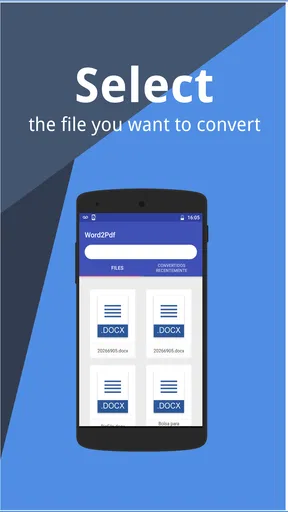
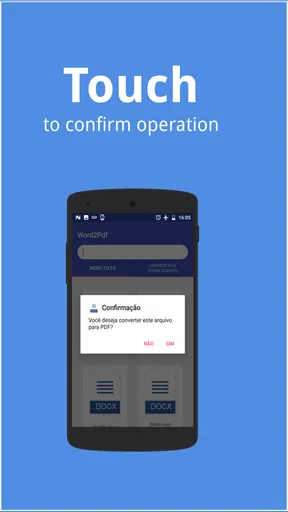
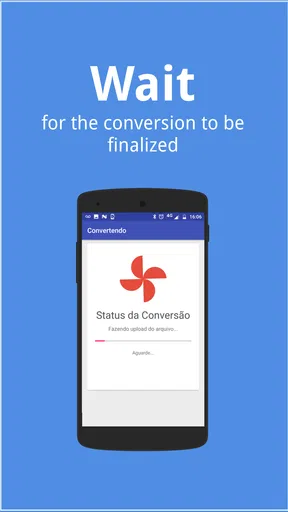
The first useful question is whether I can find the conversion action without hunting through menus. The experience described here is deliberately simple: choose a Word document, start the conversion, and get a PDF. That direct path is especially helpful when I’m working from a phone and don’t want to navigate a desktop-style workspace just to make one file shareable.
A clean workflow can also help people who are less comfortable with mobile apps. I would still treat “simple” as a benefit, not a guarantee that every step will be equally clear to everyone: file pickers and document names can be confusing when a phone contains several versions of the same report. Before converting, I’d rename the source file with a clear label, such as “invoice-final,” so the resulting PDF is easier to identify and less likely to be confused with an older draft.
Motor and sensory considerations in everyday use
A short sequence of actions is useful when tapping precisely is difficult or when I’m using my phone one-handed. Fewer decisions between opening a file and converting it can reduce friction. Still, I wouldn’t assume that a minimal interface automatically suits every motor or sensory need. Someone who relies on larger text, screen-reader cues, voice control, or a particular contrast setting should try the actual controls on their own device before depending on the app for a time-sensitive task.
There is also a practical readability check after conversion. PDF pages can preserve a document’s layout, but a file that looks fine at full size may be awkward to read on a small screen. I’d open the finished PDF and check headings, tables, line breaks, and any small print before sharing it. If the document is meant for someone who uses magnification or a screen reader, the conversion alone should not be treated as proof that the resulting PDF is accessible.
Where it fits in a busy day
I can see this being useful for a student who has to submit a Word assignment as a PDF, or for someone in a small business who needs to send a quote from a phone while away from a desk. The merge option is handy when several separate Word files need to become one document, such as a short report with sections prepared independently. I’d put the files in the intended order before combining them, then inspect the merged PDF so a misplaced section does not reach the recipient.
The app is free to install and is rated for Everyone; it has an average rating of 4.0 from around 86,000 ratings, with more than 10 million installs. Those figures suggest that it has reached a broad audience, but they don’t tell me whether it will handle a particular document exactly as I need. The current version is 7.5.0, and the app requires operating system 11 or later. It also offers in-app purchases, so I’d check the purchase details in the app before relying on a paid option or assuming every extra is included at no cost.
Worth Reading Before You Choose

Flipboard Shows What News Apps Must Do Beyond the Feed

Switching to Android Auto Means Rethinking Your Driving Routine

Google Calendar Makes a Crowded Week Easier to Manage

Ludo King Makes the Most of the Minutes Between Plans

Baby Panda World Brings Quick Play to Modern Phones, but Its Game Library Feels Busy

ESPN’s Live Game View Makes Following Close Games Easier
How it compares with office apps and built-in export tools
For a one-off conversion, a focused converter can be quicker to approach than opening a full word processor and searching for an export command. On the other hand, if I’m already editing a file in an office app, exporting from there may be more convenient because I can correct the wording and layout before creating the PDF. A dedicated converter is most useful when the Word document is ready and the only job left is changing its format.
I would not choose this app as a replacement for a desktop publishing tool or a document editor. Its described extras—merging files, rearranging pages, and adding watermarks—can help with light finishing, but they don’t make it a complete editing workspace. If I need to redesign a complicated document, inspect detailed formatting, or make many changes before delivery, I’d use an editor designed for that work and treat conversion as the final step.
Effortless Conversion
First things first, the primary function of the Word to PDF Converter is, unsurprisingly, to convert Word documents into PDF files. The app does this with remarkable ease. Once you open it, you're greeted with a clean interface. You simply select your Word document, hit the convert button, and voilà! Within seconds, your document is ready to go. It's almost like having a magic wand in your toolkit.
User-Friendly Interface
What I love about this app is its simplicity. There's no clutter, no unnecessary buttons, just a straightforward path to get things done. Even if you're not tech-savvy, navigating this app feels like a breeze. The developers have clearly put effort into ensuring that anyone can use it without a hitch. It's like the app is holding your hand through the entire process, and I mean that in the best way possible.
Versatile Features
Beyond the basic conversion, the app offers a few extra features that are worth checking out. You can merge multiple Word documents into a single PDF, which is perfect for compiling reports or presentations. Additionally, the app allows for some basic editing, like rearranging pages or adding watermarks. It’s not a full-fledged editor by any means, but these little extras can be quite handy when you're in a pinch.
Performance and Reliability
Now, let's talk about performance. I've used this app on both Android and iOS, and it performs seamlessly on both platforms. The conversion speed is impressive, and I haven't encountered any crashes or bugs during my use. The app is lightweight and doesn’t hog your device’s resources, which is always a plus. In terms of reliability, it delivers exactly what it promises, which in my books, makes it a keeper.
Privacy and Security
With all the sensitivity surrounding personal data these days, it's crucial for apps to prioritize privacy. Thankfully, the Word to PDF Converter app takes this seriously. It ensures that your documents are not stored on any server after conversion, keeping your data safe and sound. This gives me peace of mind, knowing that my documents remain confidential.
Document checks that prevent avoidable mistakes
One small habit makes this kind of conversion more dependable: keep the original Word file until you have checked the PDF. I’d compare the first and last pages, scan any tables or numbered lists, and make sure the page order is right. If a recipient needs to print the file, I’d also look for content that has shifted onto an extra page. That review takes little time and catches problems a quick glance at the filename cannot.
For a document assembled from multiple sources, I’d convert the parts separately only if their order or formatting needs individual attention, then use the merge function as the final assembly step. If the source files already have consistent styles, merging them can save a round trip through a larger editor. If their margins, headings, or page sizes differ, I’d expect to spend more time checking the result; combining files is convenient, but it does not remove the need to review them as one continuous document.
Remaining barriers and who may prefer another route
The app is a better fit for a ready-to-send Word file than for a document that still needs careful revision. It may also be the wrong choice when a workplace requires a specific accessibility workflow, a strict branded template, or detailed control over output. In those cases, I’d use the original editing software, where I can inspect the source and export settings together, rather than relying on a quick conversion step to solve layout or accessibility issues.
There is a cost detail worth considering before exploring optional tools: although the app is free, in-app purchases range from $0.99 to $124.99 per item. I’d avoid assuming that a feature I want is free or that a purchase is a one-time bundle; I would read the purchase screen carefully and decide whether the extra is relevant to my actual workflow. If all I need is an occasional basic conversion, I’d first see whether the free experience covers that job.
Who I would recommend it to
I’d recommend it to people who often receive or prepare Word documents on a phone and need a PDF without opening a larger editing suite. It is particularly practical for a quick handoff: imagine finishing a quote between appointments, converting it, checking the totals and contact details in the PDF, then sending that fixed-format copy to a client. The merge and page-order tools can also suit someone who puts together short reports from separately written sections.
I’d skip it if I rarely convert documents, already have a reliable export option inside the office app I use, or need professional layout control. The best choice depends on where the work happens: a converter is a handy final-mile tool, while an editor is better for changing content and a desktop publishing application is better for complex page design. That distinction keeps expectations realistic and helps avoid paying for extras that do not solve the real problem.
Final Thoughts
In conclusion, the Word to PDF Converter app is a fantastic addition to anyone’s app arsenal. Whether you’re a student, professional, or just someone who frequently deals with documents, this app will streamline your workflow in ways you might not have imagined. It's efficient, user-friendly, and reliable—qualities that are hard to come by in the sea of apps available today.
If you’ve ever needed to convert a Word document on the fly, this app is worth a download. It’s like having a little office assistant in your pocket, ready to help you out at a moment’s notice. Give it a try, and you might just wonder how you ever managed without it!
My inclusive verdict is positive but measured: the appeal is a focused route from Word file to PDF, with a few useful finishing tools, rather than a promise to cover every document need. I’d test the workflow with a non-sensitive file first, see whether the controls work comfortably on my device, and inspect the exported pages before sharing them. For quick, routine conversions that is a sensible fit; for accessibility-critical documents or intricate layouts, I’d choose a tool that gives me more control and time to verify the result.
Pros
- Easy to use interface for quick conversions.
- Supports multiple file formats beyond PDF.
- High-quality output without data loss.
- Fast conversion speed even for large files.
- No internet connection required for conversion.
Cons
- Limited editing options within the app.
- Occasional formatting issues with complex docs.
- Ads can be intrusive in the free version.
- Some features locked behind a paywall.
- No batch processing for multiple files.
FAQs for Word to PDF Converter
What are the main features of the Word to PDF Converter app?
The Word to PDF Converter app offers a seamless way to convert Word documents into PDF format with ease. It supports batch conversion, ensuring you can convert multiple documents at once. The app also retains the original formatting, including fonts and images, and offers options for password protection and sharing directly from the app.
Is the Word to PDF Converter app free to use?
The app offers a free version with basic features such as simple document conversion. However, for advanced functionalities like batch processing, password protection, and ad-free experience, users might need to upgrade to the premium version. This tiered approach ensures that casual users have access to essential features while professionals can opt for more robust options.
How secure is the Word to PDF Converter app?
Security is a top priority for the Word to PDF Converter app. It employs encryption to protect your documents during the conversion process. Additionally, premium users can add password protection to their PDFs, ensuring sensitive information remains secure. The app also guarantees that no data is stored on its servers after conversion, safeguarding user privacy.
Can the Word to PDF Converter handle large files or complex documents?
Yes, the Word to PDF Converter app is designed to handle large files and complex documents efficiently. It maintains the integrity of the original document's layout, fonts, and images, even for extensive documents. However, performance may vary based on your device’s capabilities and the size of the file being converted.
Does the Word to PDF Converter app require an internet connection?
The app primarily functions offline, allowing users to convert documents without needing an internet connection. This is ideal for users who require secure, on-the-go conversions. However, features such as cloud storage integration or updates might require internet access to function properly.


